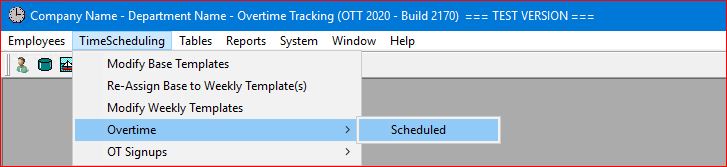
Select the TimeScheduling | Overtime | Scheduled main menu option.
or click on the Tool Bar icon  .
.

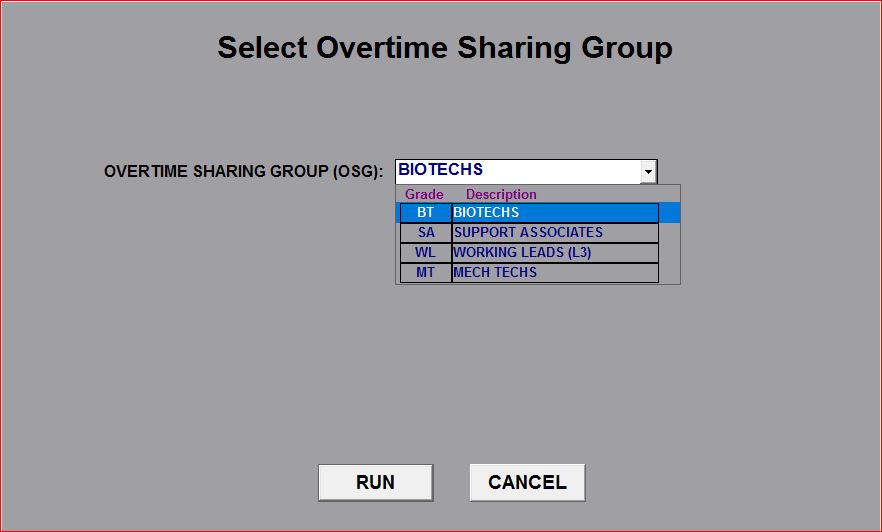
The system will prompt you to select a specific OSG for Overtime Scheduling:
When the Overtime Schedule screen is displayed, select an employee, day and shift that you want to schedule an overtime assignment for AND select the Multiple Option at the top of the screen:
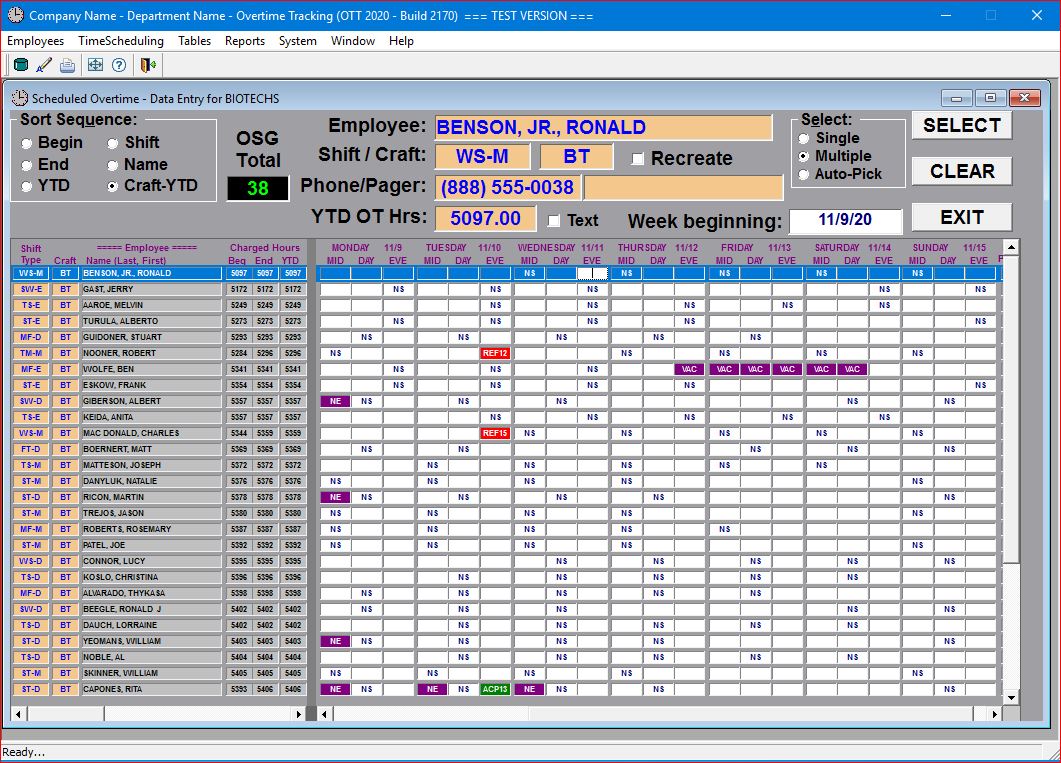
If you select the Multiple option at the top of the screen, then "double-click" on a "cell" in the Overtime Schedule, the system displays the "multiple" version of the standard "pop-up" window. This version is very similar to the standard version, but contains a list box of employees in low-hour order who are available for this overtime assignment. You have the option of selecting as many employees as you want from this list and each employee will be assigned the same overtime offering:
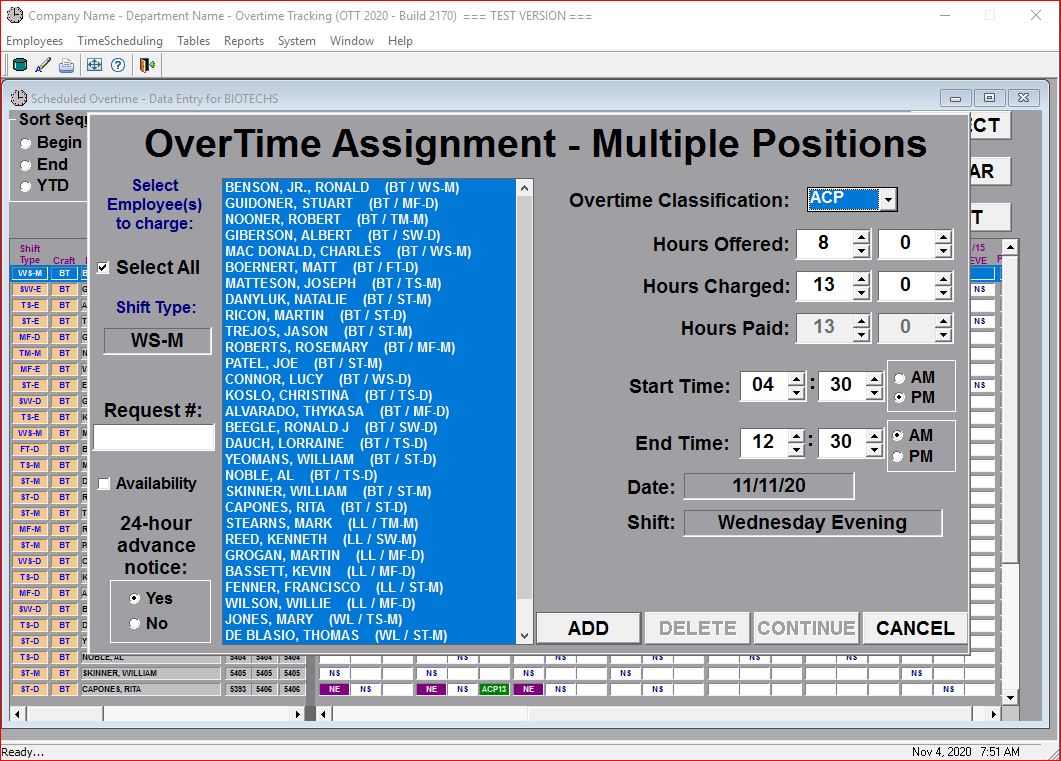
Click on the ADD button and the system will update the Overtime Schedule as well as the total charged hours for each of the employees selected on the list.
Further, the system will perform the calculations for each employee individually in case any of the employees selected should receive a different charge based on any existing charges on any adjacent shifts.
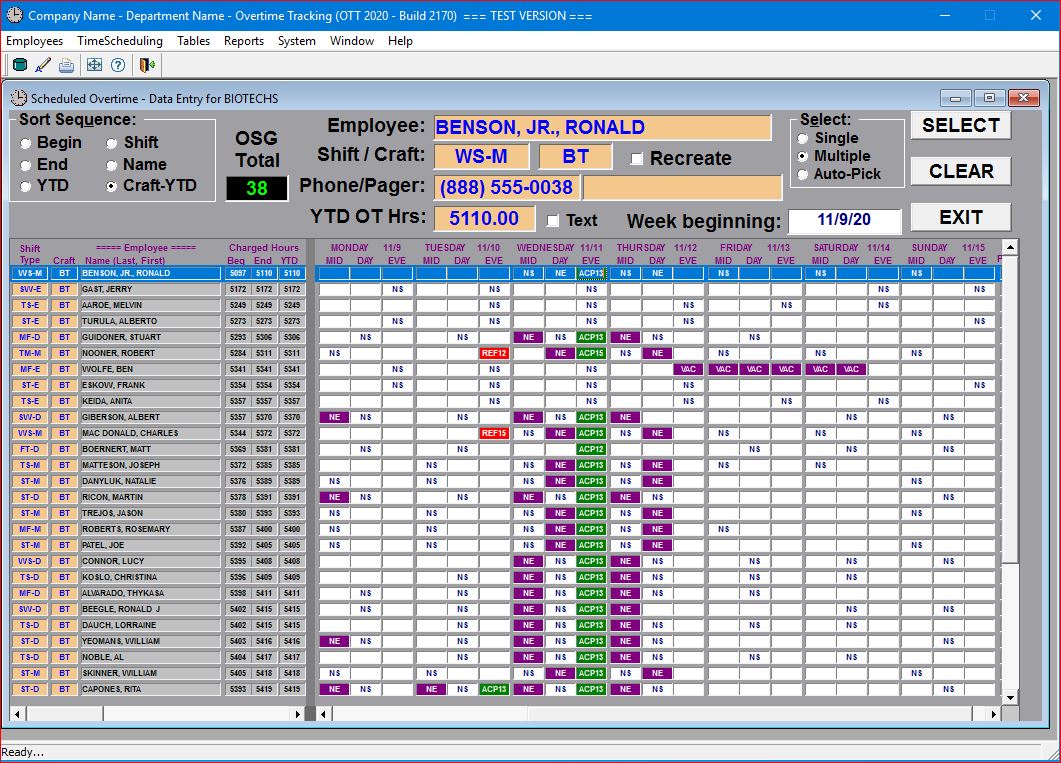
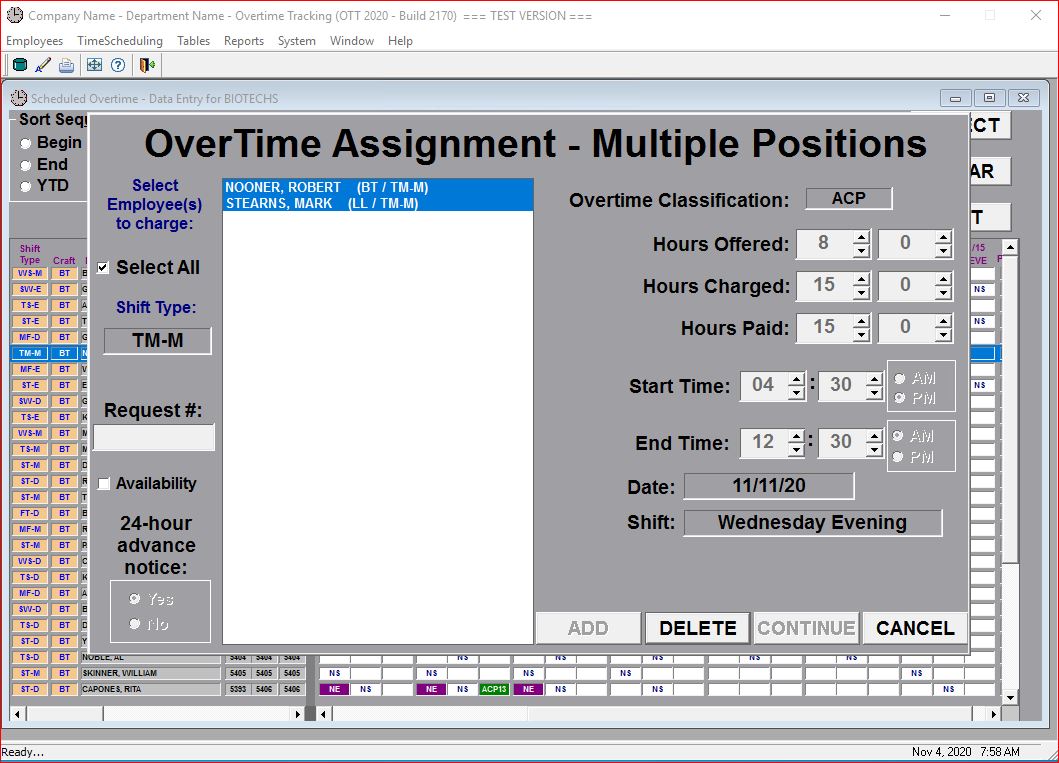
As you can see in the screen above everyone selected received an ACP overtime charge. Looking closer, you can see that the first employee received an ACP13 (13.00 hour charge), while the third employee (from the top) received an ACP15 and the sixth employee received an ACP12. The system automatically calculates the charges separately for each employee based on their particular shift schedule.
This Multiple option works for deletions the same as for additions. By selecting the Multiple option and clicking on a "cell" that has an existing overtime assignment, the "multiple" version of the "pop-up" window activates the DELETE button and deactivates the ADD button.
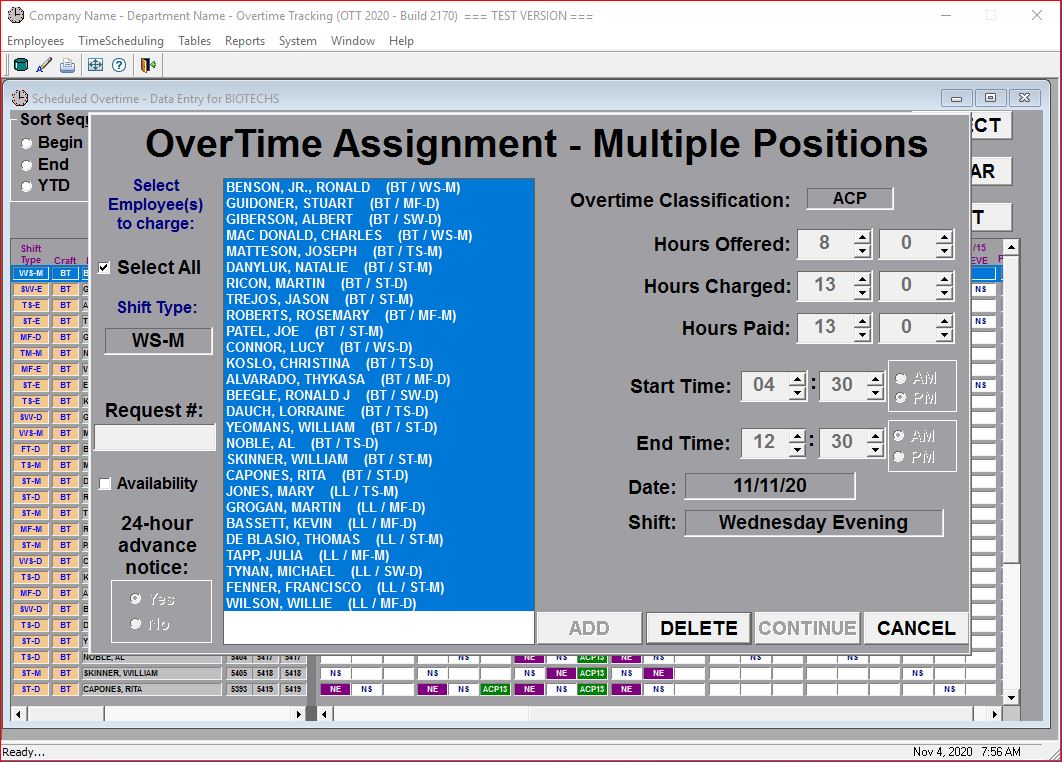
Click on the DELETE button and the system will update the Overtime Schedule as well as reduce the total charged hours for each of the employees selected from the list.
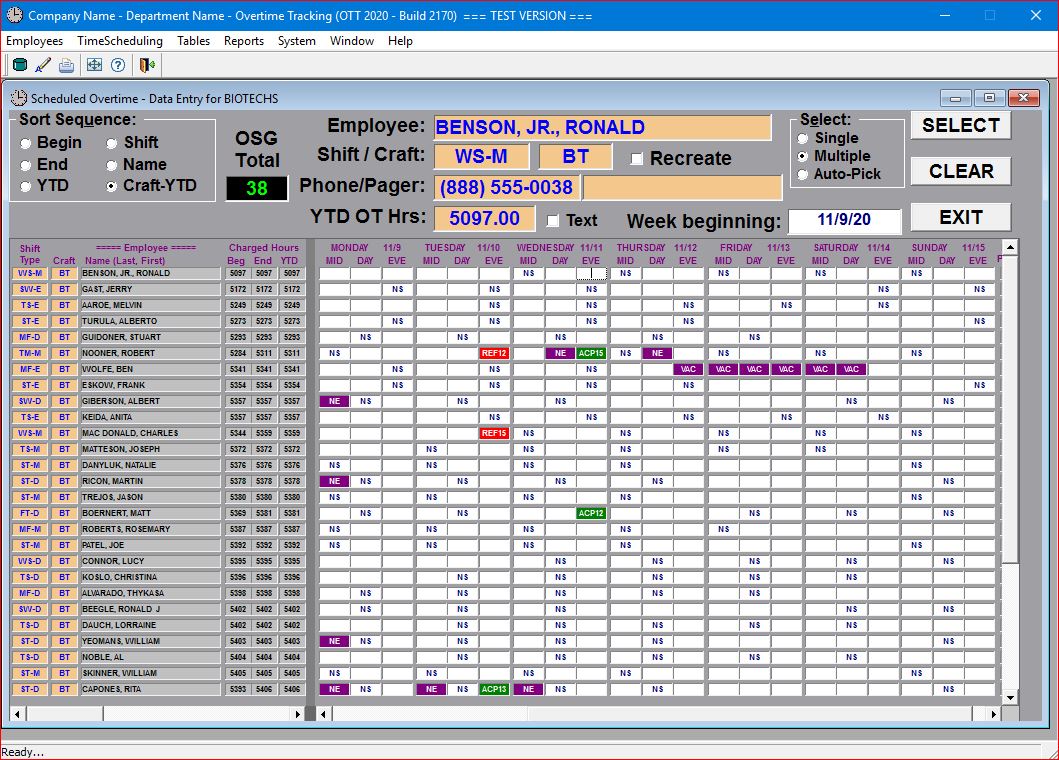
IMPORTANT: The only difference with the "multiple delete" processing is that when you click on a "cell" that received an ACP13 charge, ONLY employees with the "exact same charge" will be selected by the system. You will need to also click on a "cell" that received an ACP15 or ACP12 charge to completely delete all the charges that you originally added.