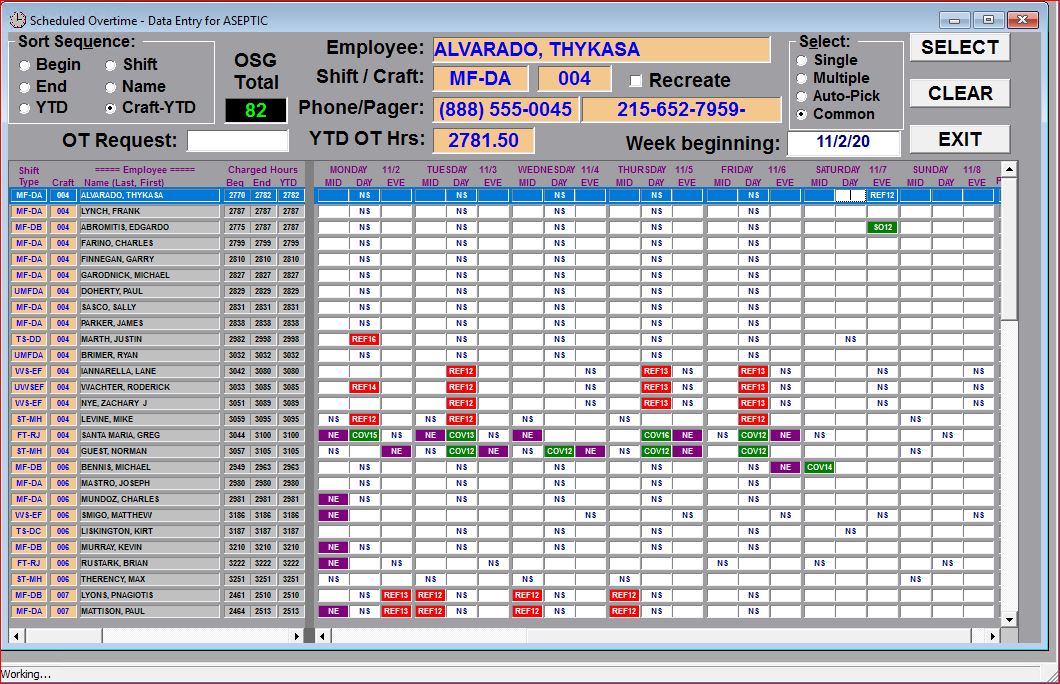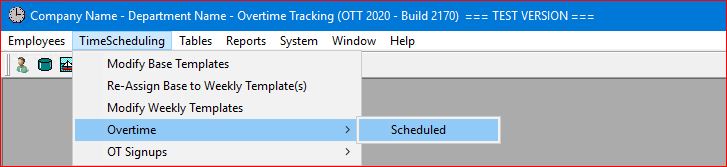
Select the TimeScheduling | Overtime | Scheduled main menu option.
or click on the Tool Bar icon  .
.

The system will prompt you to select a specific OSG for Overtime Scheduling:
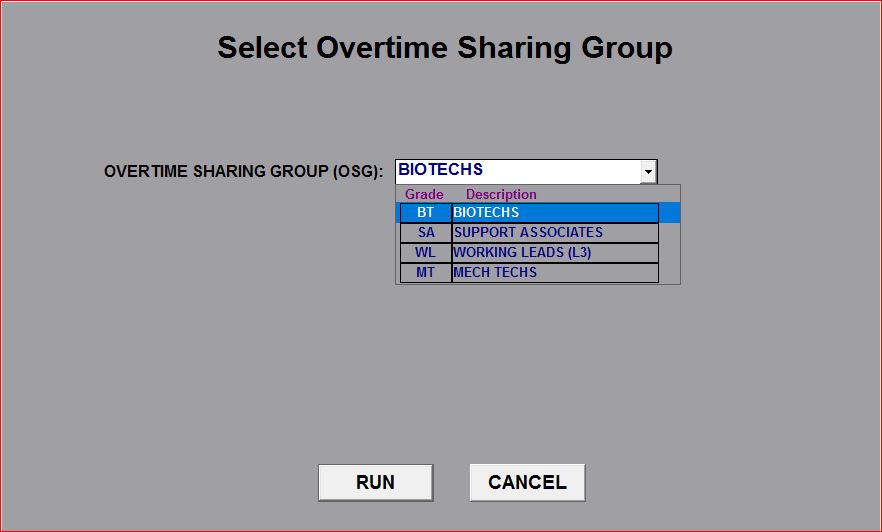
Click the RUN button to continue.
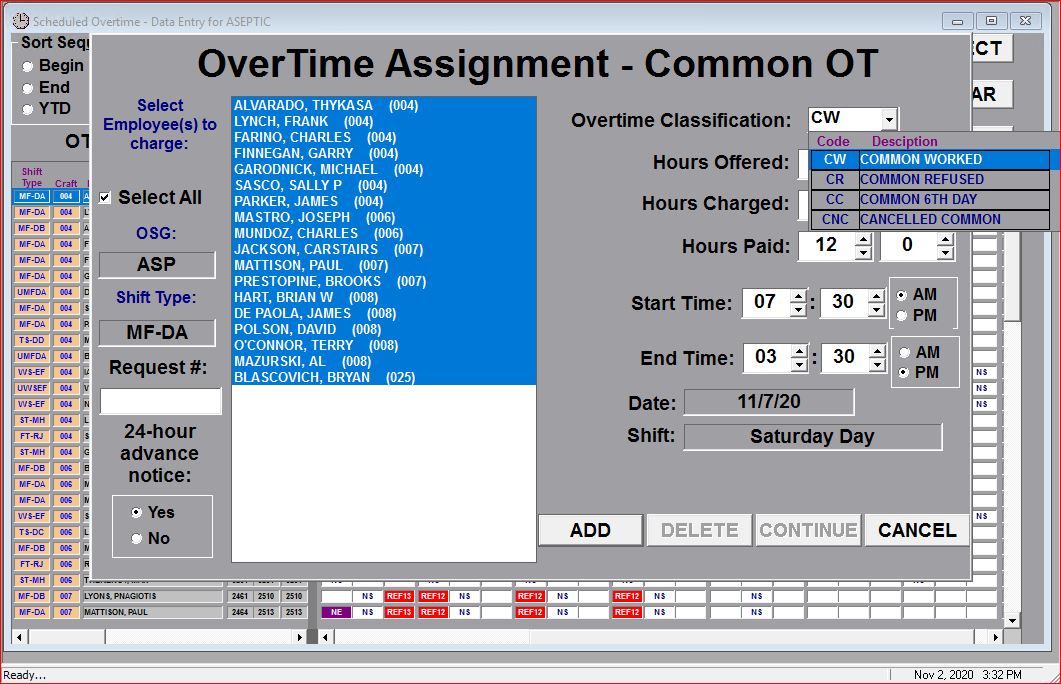
This version is very similar to the standard version, but contains a list box of employees that have the same Shift Type as the employee originally selected with their Craft codes in parentheses following their names AND the employees are listed in low-hour order. Note that the "Overtime Classification" drop-down list is limited to options that apply to common overtime ONLY.
Click on the ADD button and the system will update the Overtime Schedule as well as the total charged hours for each of the employees selected on the list:
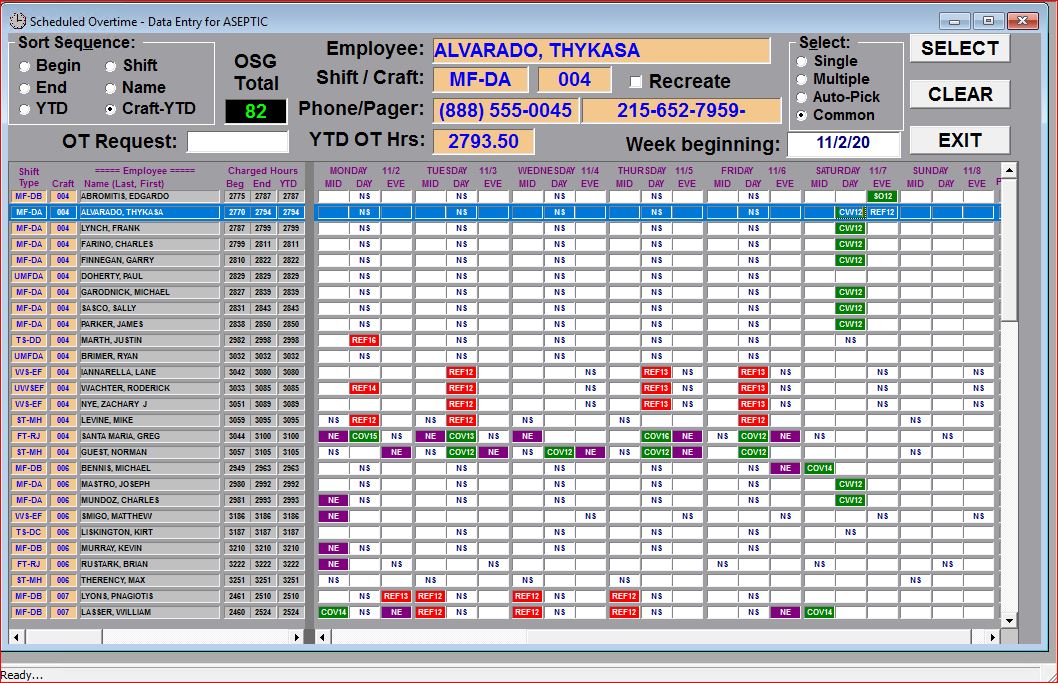
This Common option works for deletions the same as for additions. If you double-click on a "cell" that already contains a common overtime charge, the pop-up will list all employees in that shift who have been assigned a similar charge:
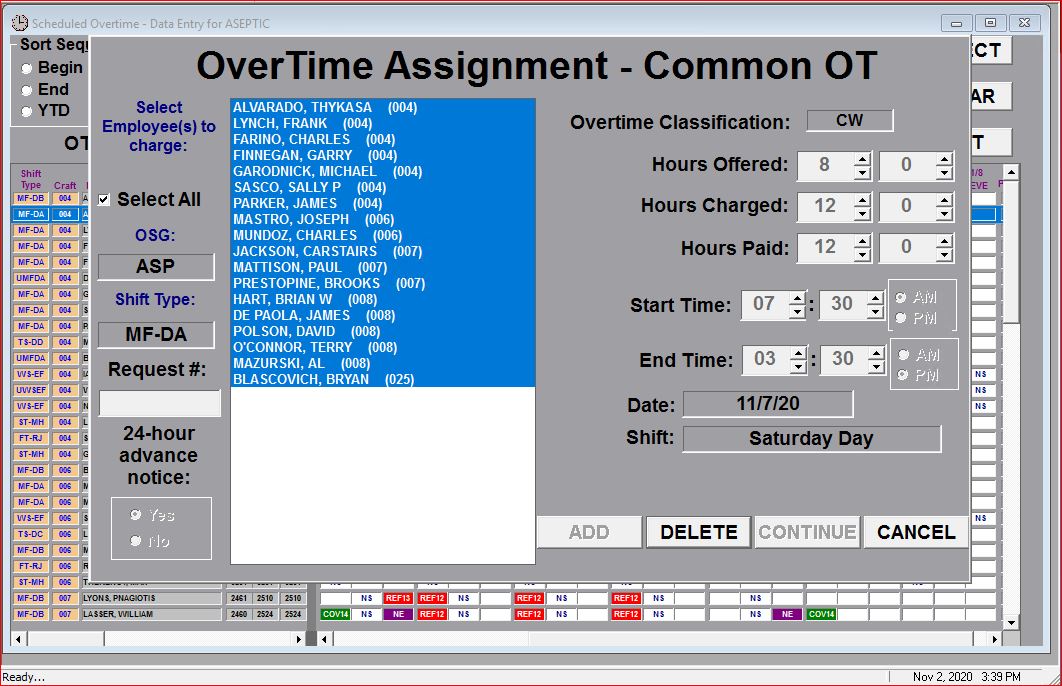
If you click on the DELETE button, the system will update the Overtime Schedule as well as reduce the total charged hours for each of the employees selected from the list: